
SketchUp extension · free
Smart Spline
Smooth, organic 3D curves with zero configuration. Point, click, and the curve finds its path through your geometry.
Why Smart Spline
SketchUp’s standard tools struggle with organic shapes, and the plugins that handle them bury you in dialog boxes before you draw a single line.
Smart Spline does the opposite: no window, no setting. You draw directly in the 3D view, like a native tool.
Key features
No interface
No pop-up hiding your model. You draw in the viewport.
Live preview
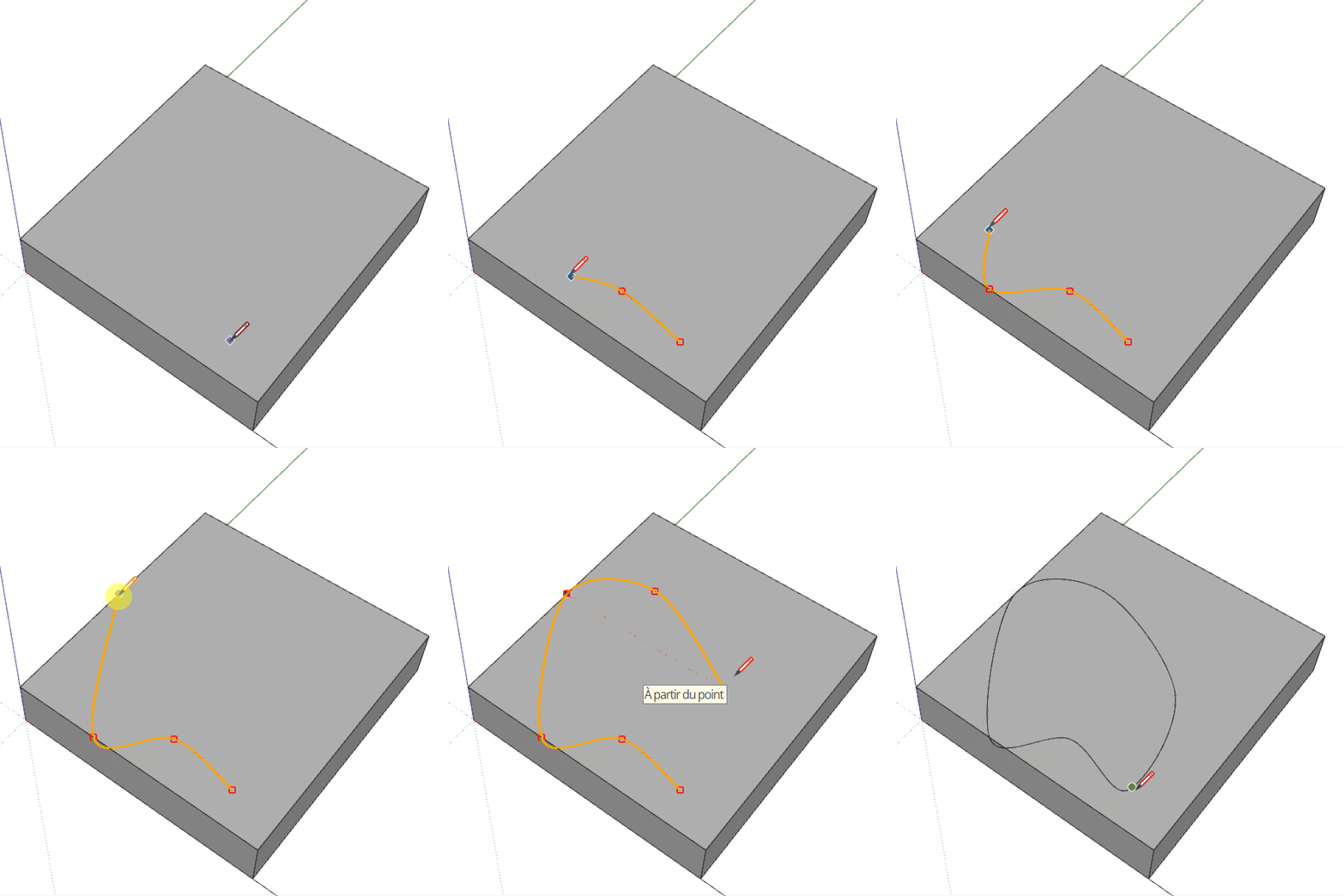
An orange guide shows how the curve will behave before you click.
Automatic smoothing
The curvature is recalculated from your last four points, and the number of segments follows it.
Truly 3D
Points snap to vertices, edges and faces: handrails, terrain contours, cables, organic furniture.
How to use it
Place the points
Left-click to place a control point. The curve passes through every point you click (Catmull-Rom), with no tangent handles to adjust. SketchUp’s inferences still work: snap to vertices, edges or faces.
Finish
Double-click on the last point, or press Enter, to finish an open curve. Click on the first point to close the loop.
Correct as you go
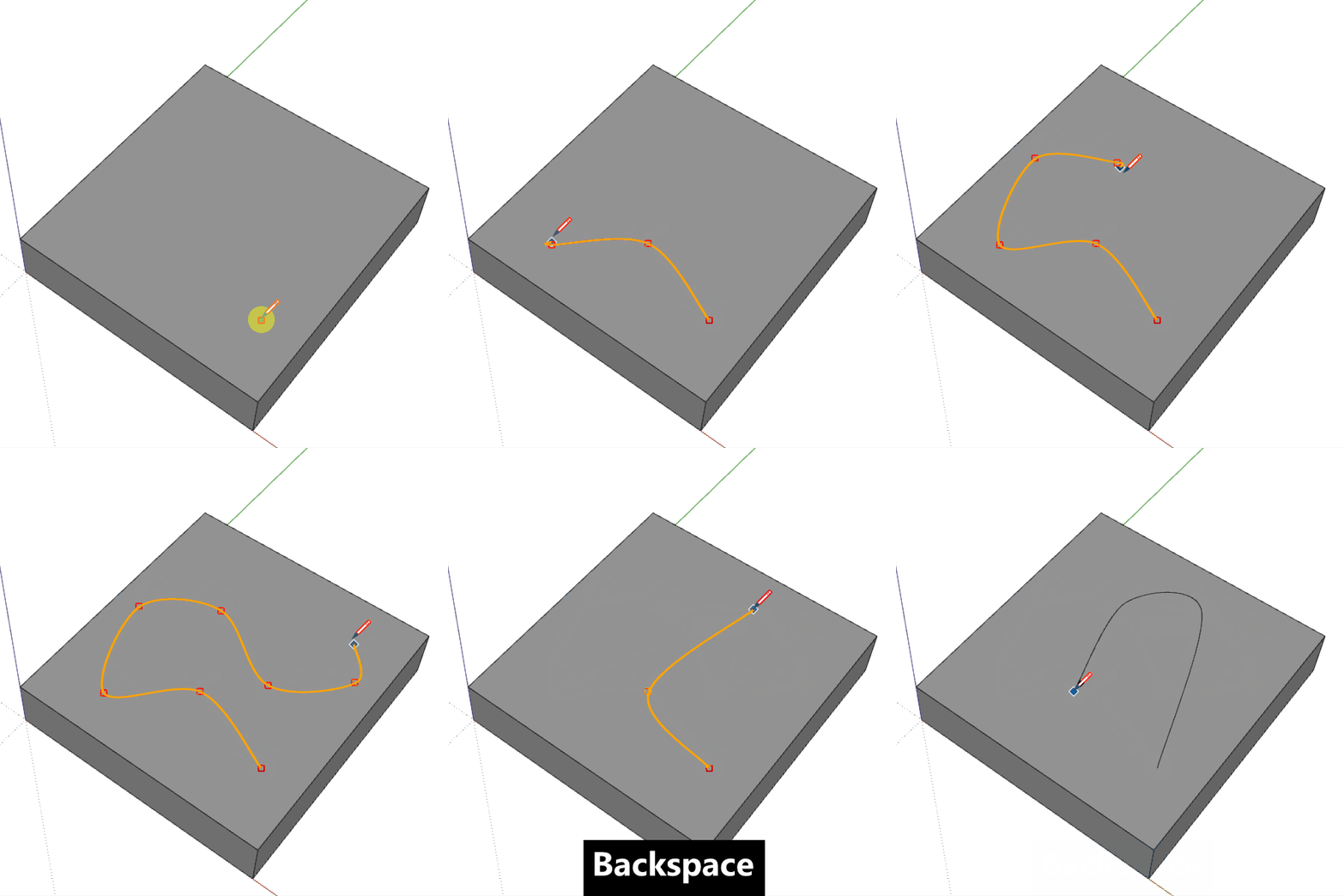
Backspace removes the last point, as many times as needed. Don’t use Ctrl+Z while drawing: it cancels the whole curve.
Smart Spline in action
 Watch the video on YouTube (external site)
Technical details
- Version
- 1.0.0
- SketchUp
- Tested on SketchUp 2020 to 2026, Windows and Mac
- License
- Free, commercial use included
- Download
- Extension Warehouse
Free, and it stays free
If it saves you time, you may like the other tools too.